




Importing Data From A CSV File
1. Open your application and open your form in Add Data Mode.
2. If the Spec Window title bar at the bottom left of your screen does not display Import followed by your form name, click on the large arrow to the right of the title until Import is the displayed spec.
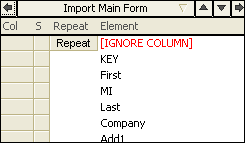
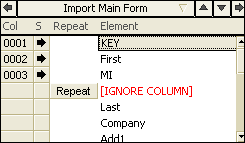
3. In the Spec Window at the bottom left of your screen, click the grey box next to each field that you want to import.
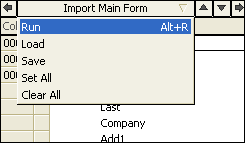
4. In the Spec Window, click on the title bar which should say Import followed by your form name. Select Run from the list of options that appears.
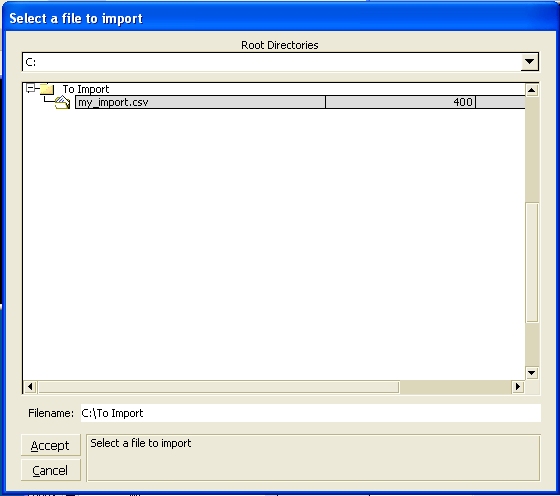
5. A window appears on your screen asking you to select the file you want to import. Select your import file and click Accept.
6. Sesame imports your data to the specified fields.
More Information:
It is important that you import your data in the same order as the data that is stored in your import file.
Information about Importing data into Sesame is located on page 337 of the 2.0 Sesame User Guide.